1. Your router is on the floor
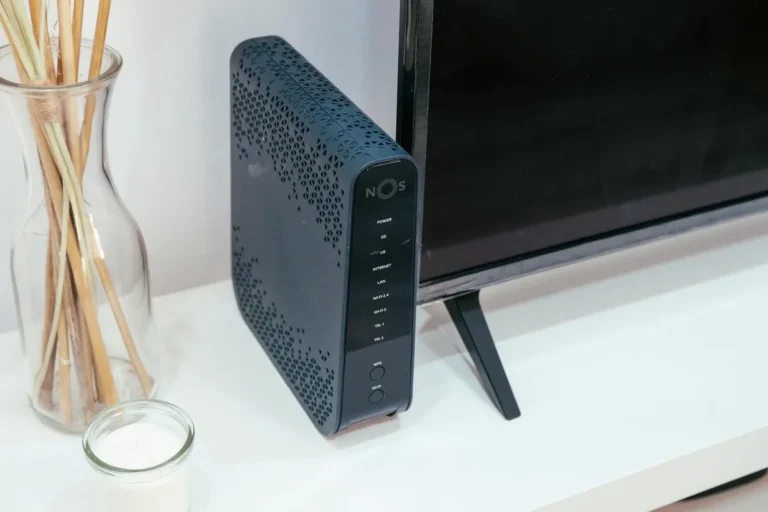
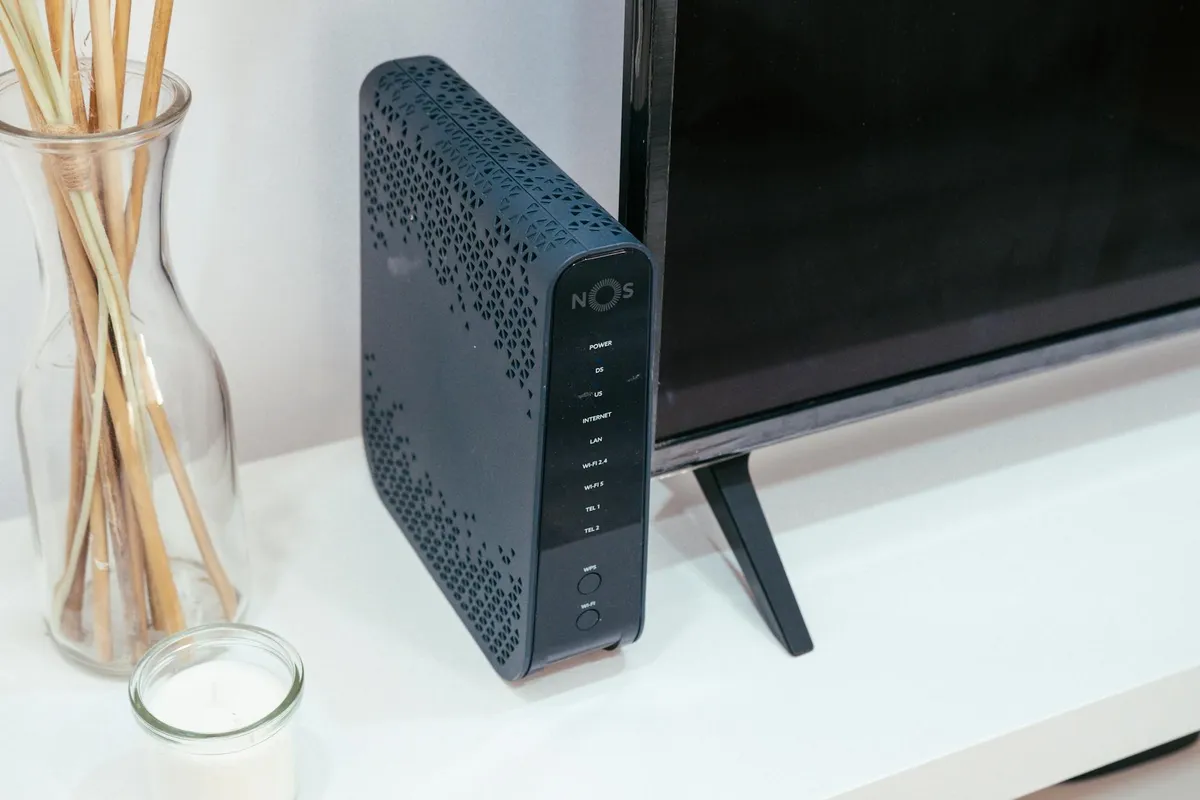
Wi-Fi signals radiate outward and slightly downward from an antenna. Put your router on the floor and you’re broadcasting most of your signal into the carpet. Move it to a shelf or a central tabletop, ideally at waist height, and you’ll cover more of the room with less effort.
- Aim for a central spot in the home, not a corner or a closet.
- Keep it off the floor by at least one metre.
- Avoid tucking it behind the TV stand or inside a cabinet.
2. You’re using the wrong Wi-Fi band
Modern routers broadcast on two or three bands: 2.4 GHz, 5 GHz, and sometimes 6 GHz. Here’s the deal: 2.4 GHz travels farther but is slower and more congested. 5 GHz is faster but loses range. Most routers default to auto-switching, which is fine, but if your laptop keeps connecting to the slower band, manually assign it to 5 GHz in your device settings.
- Use 5 GHz for devices in the same room as the router.
- Use 2.4 GHz for smart plugs, sensors, and anything in a far corner.
- If your router supports Wi-Fi 6E, keep fast devices on the 6 GHz band.
3. You never changed the Wi-Fi channel
Your router shipped on a default channel, and so did every other router in your building. Channel congestion is one of the most underrated causes of slow Wi-Fi. Log into your router admin panel and switch to a less congested channel. On 2.4 GHz, stick to channels 1, 6, or 11. On 5 GHz, the options are wider — run a Wi-Fi analyser app to see which channels your neighbours aren’t using.
4. Your firmware is years out of date
Router manufacturers push firmware updates that fix bugs, patch security holes, and sometimes meaningfully improve performance. Most people never install them. Log into your router admin panel, find the firmware section, and update it now. Then turn on automatic updates if the option exists.
- Outdated firmware is a security risk, not just a performance issue.
- Some routers have an app that handles updates — enable it.
5. You’re running QoS settings that throttle your best devices
Quality of Service (QoS) lets your router prioritise certain devices or traffic types. The problem: many routers ship with QoS enabled and set in a way that accidentally throttles your fastest devices. Check your QoS settings. If you don’t understand them, disable QoS entirely and test your speeds. Many people see an immediate improvement.
6. Your DNS server is slow
DNS translates domain names into IP addresses every time you visit a website. Your ISP’s default DNS servers are often slow. Switch to Cloudflare (1.1.1.1) or Google (8.8.8.8) in your router’s DNS settings. It takes two minutes and web pages will feel noticeably snappier.
- Primary: 1.1.1.1 (Cloudflare) or 8.8.8.8 (Google)
- Secondary: 1.0.0.1 (Cloudflare) or 8.8.4.4 (Google)
7. You have too many devices on a single band
Every device connected to your Wi-Fi competes for airtime. Thirty devices on a single 2.4 GHz band will slow each other down. Bottom line: use a mesh system or a tri-band router to spread the load across multiple bands, and move high-bandwidth devices like streaming sticks and game consoles to a wired Ethernet connection wherever you can.
8. You’re ignoring wireless interference
Microwaves, baby monitors, cordless phones, and Bluetooth devices all share the 2.4 GHz spectrum. If your kitchen Wi-Fi dies every time you reheat dinner, interference is the culprit. Moving the router or switching to 5 GHz usually solves it immediately.
- Cordless phones are a surprisingly common source of 2.4 GHz interference.
- Thick concrete walls block 5 GHz more aggressively than 2.4 GHz.
- Mirrors and fish tanks scatter Wi-Fi signals significantly.
9. You have no guest network
This is less about speed and more about security, but a guest network solves two problems at once. First, it keeps visitors’ devices off your main network where your computers, NAS drives, and smart devices live. Second, it puts your smart home devices on an isolated segment so a compromised bulb can’t reach your laptop. Most modern routers can set up a guest network in under five minutes. Do it today.
Fix these nine things and your network will perform meaningfully better. Start at the top of the list — router placement and band selection give you the biggest gains with zero cost.