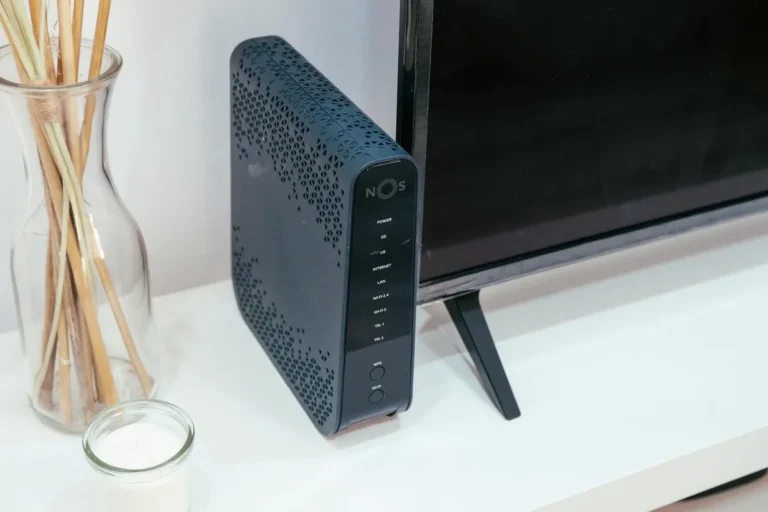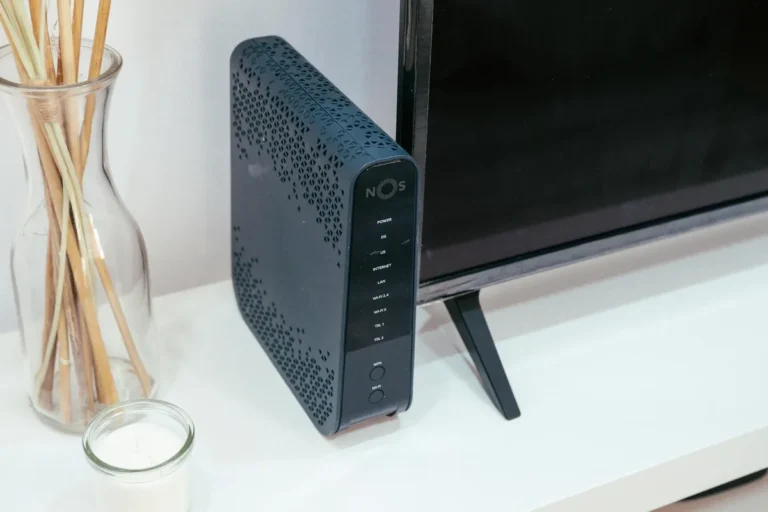

Your router is the front door of your home network. Most routers ship with that door unlocked, the key under the mat, and a sign on the front saying which brand it is. Here’s the deal: most home network breaches aren’t sophisticated attacks. They exploit the settings no one changed at setup. Fix these ten and you’re significantly more secure than 90 percent of home networks.
To access your router settings: open a browser, type 192.168.1.1 or 192.168.0.1, and log in. Check the bottom of your router for the default admin credentials if you’ve never logged in before.
1. Change the default admin username and password
Every router model ships with a known default admin password. Lists of these are freely available online. The first thing anyone trying to compromise your router will do is try the defaults. Change both the username and password to something long and unique. Use a password manager to store it.
- Minimum 16 characters, mix of letters, numbers, symbols.
- Don’t reuse a password you use anywhere else.
2. Change your Wi-Fi network name (SSID)
The default network name often includes your router model (e.g. “NETGEAR87” or “ASUS_RT-AX88U”). That tells anyone within range exactly which router you have, making it easier to look up known vulnerabilities. Change it to something that doesn’t identify the brand or your household.
3. Use WPA3 encryption (or WPA2 at minimum)
WPA3 is the current Wi-Fi security standard. If your router supports it, enable it. If not, make absolutely sure you’re on WPA2-AES — not WPA, not TKIP, not “mixed mode” unless WPA3 clients require it. WEP is completely broken and should never appear in your settings.
- Look for Security Mode in your wireless settings.
- Set it to WPA3 or WPA2-AES.
4. Set a strong Wi-Fi password
Your Wi-Fi password protects everything on your network. Use at least 16 characters. Avoid dictionary words or anything connected to your address or name. Bottom line: a strong Wi-Fi password is your first line of defence against neighbours or passersby connecting to your network.
5. Disable WPS (Wi-Fi Protected Setup)
WPS was designed to make connecting devices easier by using a PIN or a button press instead of a password. The PIN method has a known vulnerability that lets attackers crack it in hours. Disable WPS entirely in your router settings — it’s almost certainly under “Advanced Wireless” or “WPS.”
6. Disable remote management
Remote management lets you access your router admin panel from outside your home network via the internet. Most people never need this. Leaving it enabled means attackers can attempt to log in from anywhere in the world. Turn it off. If you need remote access to your home network, use a VPN instead.
7. Enable the firewall
Most routers have a built-in firewall that should already be on, but verify it. Look for “Firewall” or “SPI Firewall” in your settings. Make sure it’s enabled. While you’re there, make sure UPnP (Universal Plug and Play) is disabled — it’s convenient but opens ports automatically without your knowledge.
- SPI Firewall: enable it.
- UPnP: disable it unless a specific application requires it.
8. Set up a guest network for visitors and smart devices
A guest network is a separate Wi-Fi segment that can’t reach your main network. Put your visitors on it. More importantly, put your smart home devices (bulbs, plugs, cameras, thermostats) on it. Smart devices often have poor security, and isolating them means a compromised device can’t reach your computers or NAS drives.
9. Update the firmware
Firmware updates patch security vulnerabilities. Check your router admin panel for a firmware update section and install any pending updates now. Then enable automatic updates if the option exists. Set a reminder to check quarterly if automatic updates aren’t available.
- Some routers have companion apps (Asus Router, Netgear Nighthawk) that notify you of updates.
- Never skip a firmware update that mentions “security fixes.”
10. Disable unused services
Many routers enable services by default that most households never use: SSH access, Telnet, FTP server, media server, USB sharing. Each enabled service is a potential attack surface. Go through your router’s advanced settings and disable everything you don’t actively use.
These ten changes take less than an hour and address the most common vulnerabilities on home networks. Do them once, document your new passwords in a password manager, and your router will be significantly harder to compromise than the day it arrived.